Invoice Preview
Signature
Free Plumbing Invoice Templates
Browse our complete collection of professional, print-ready invoice formats.
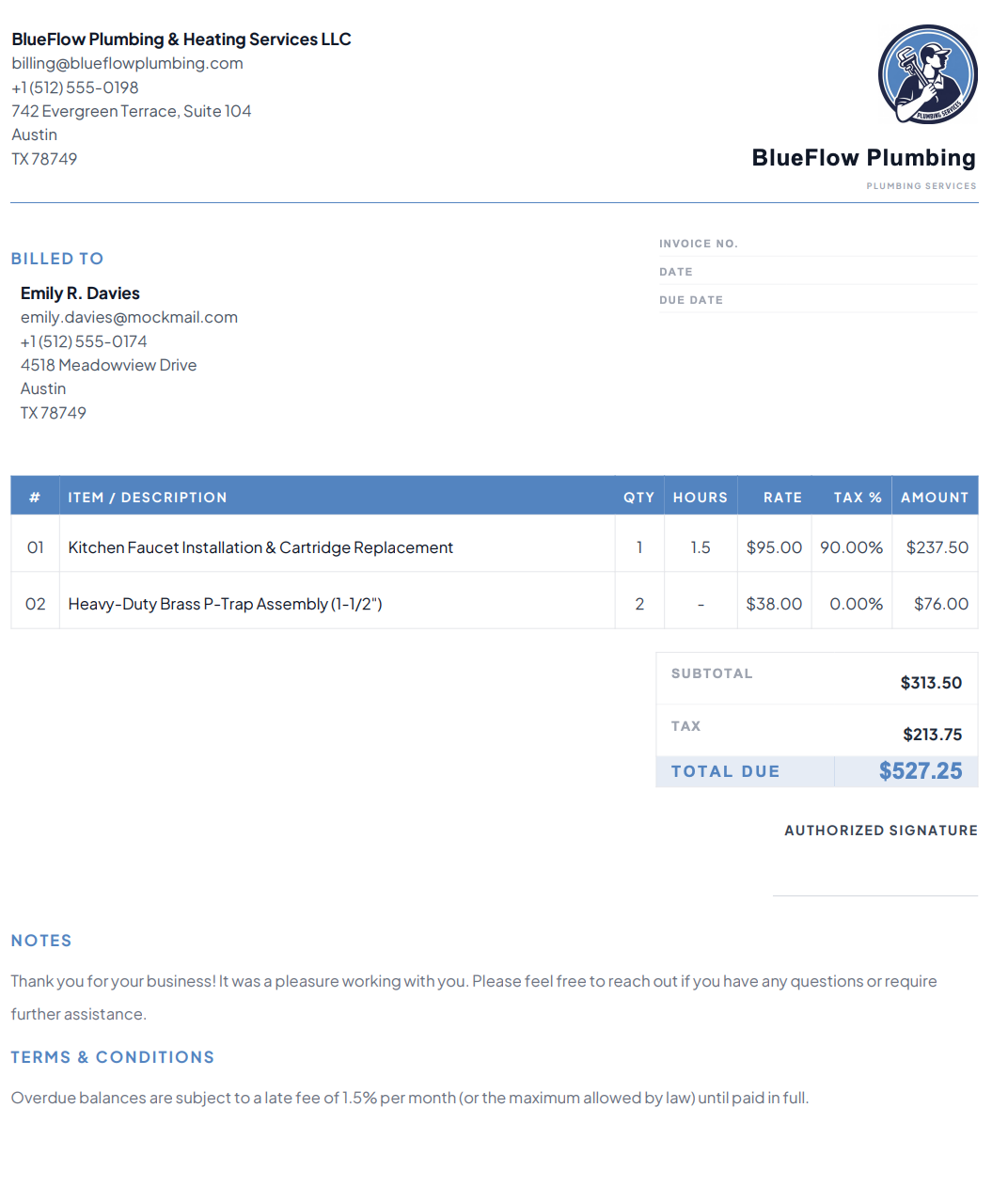
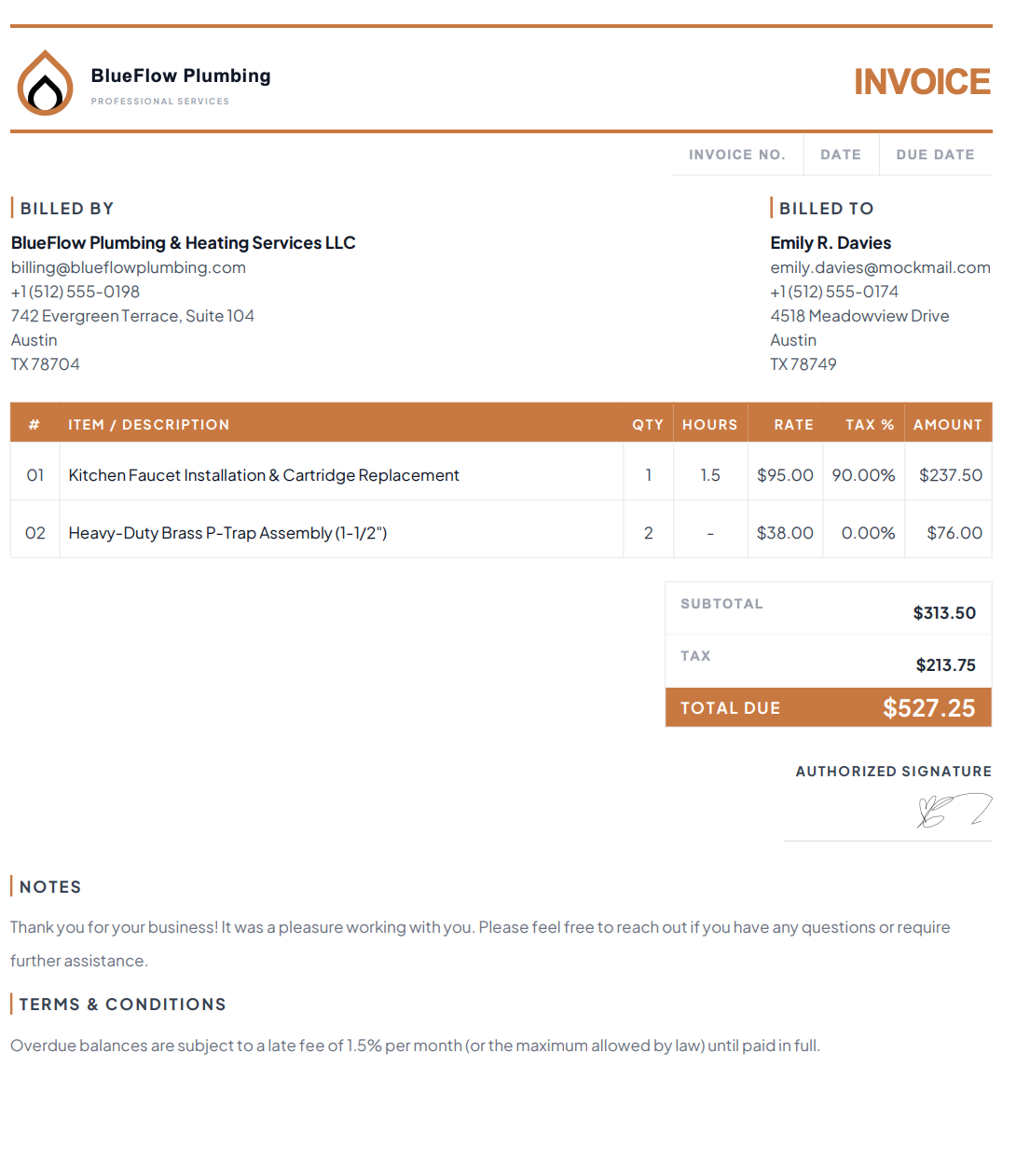
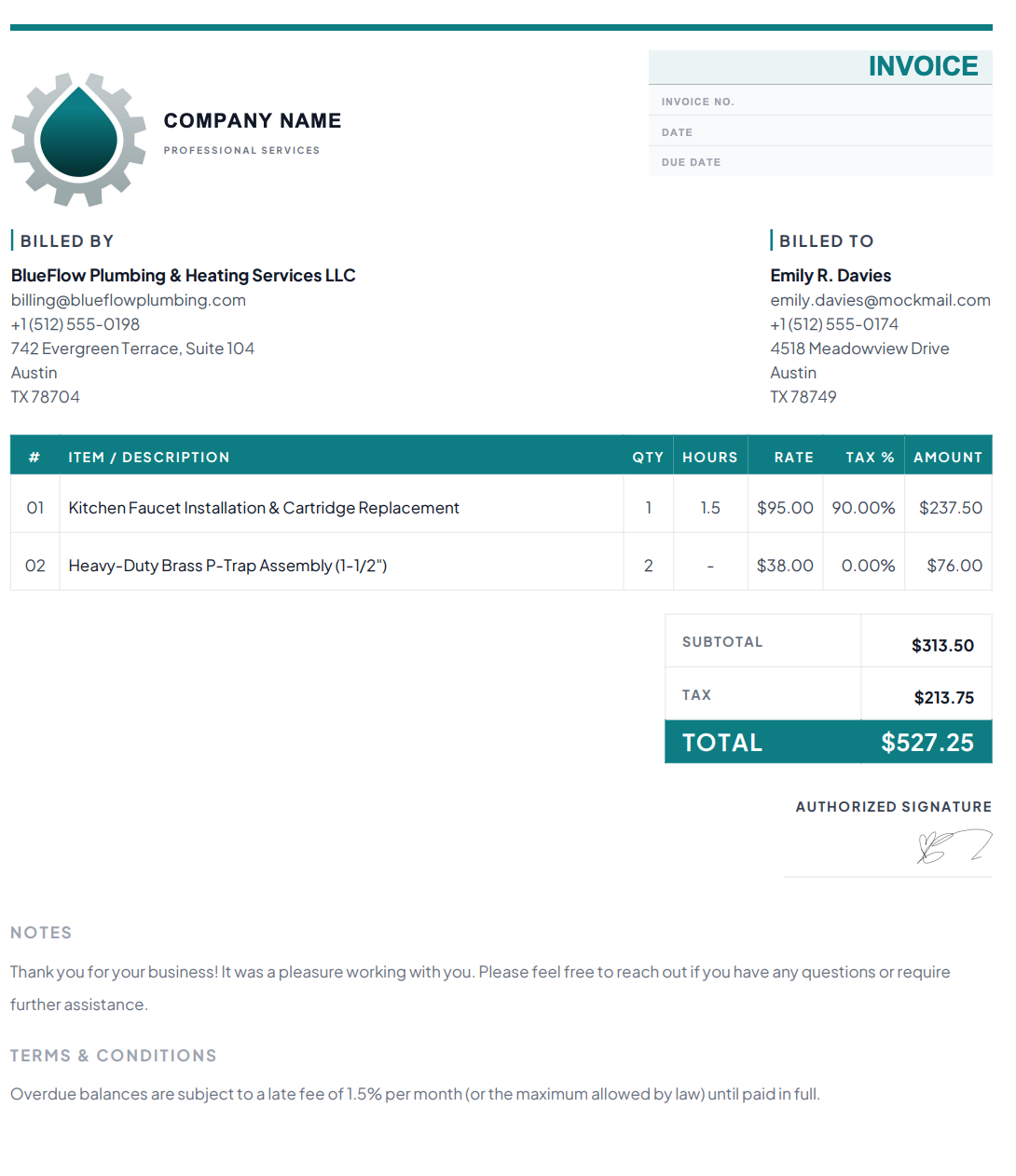
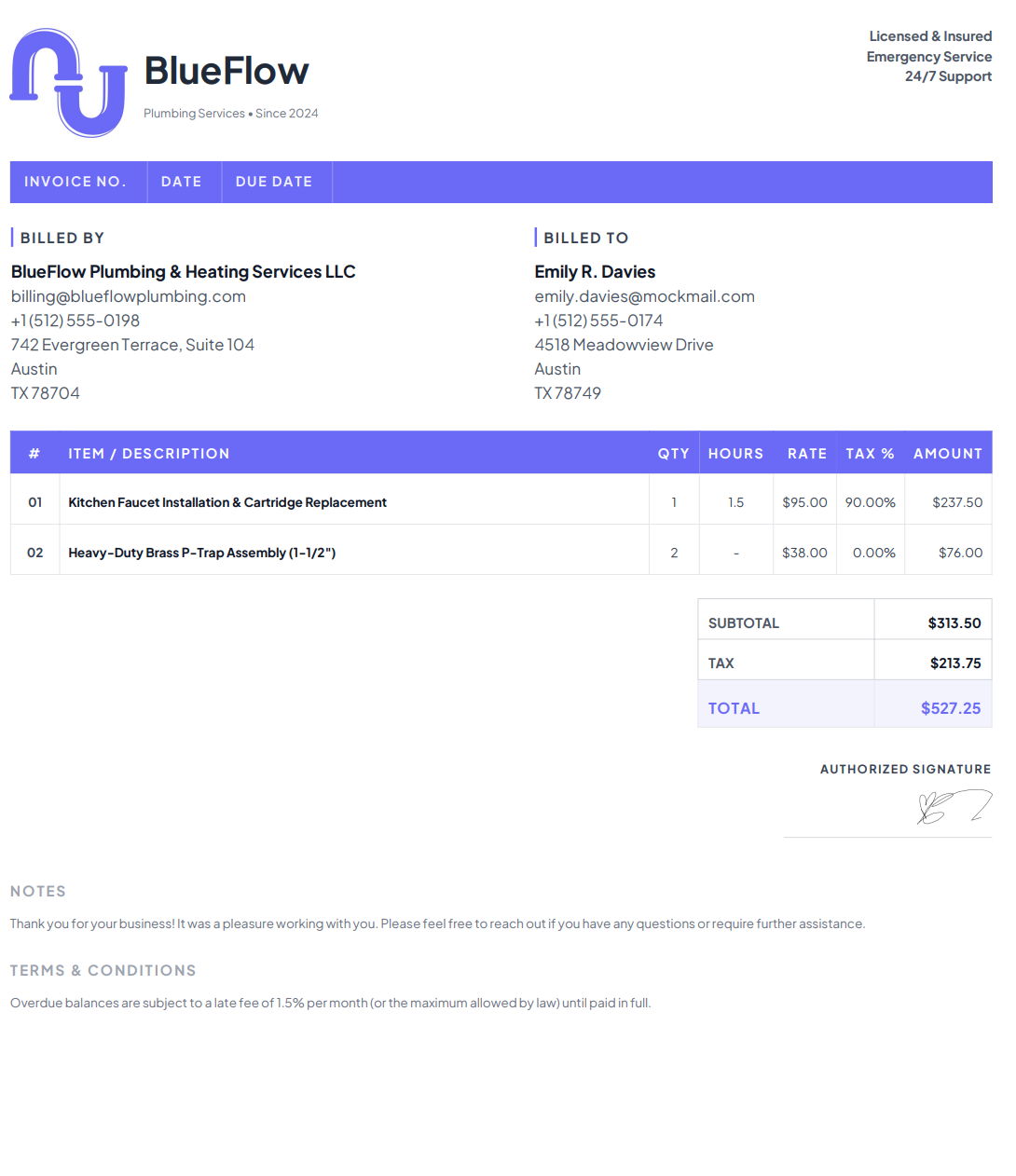
How Do I Create a Plumbing Invoice?
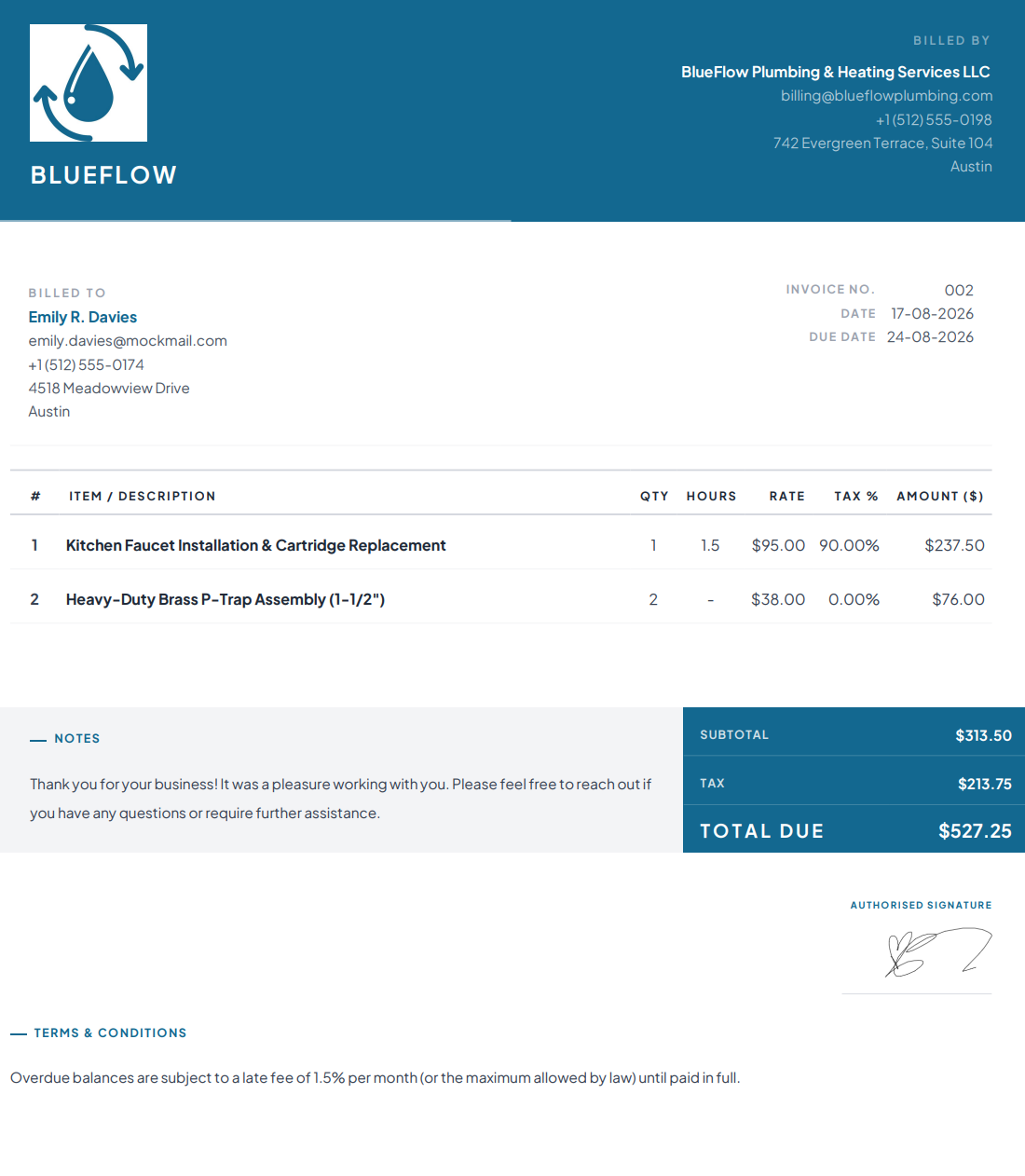
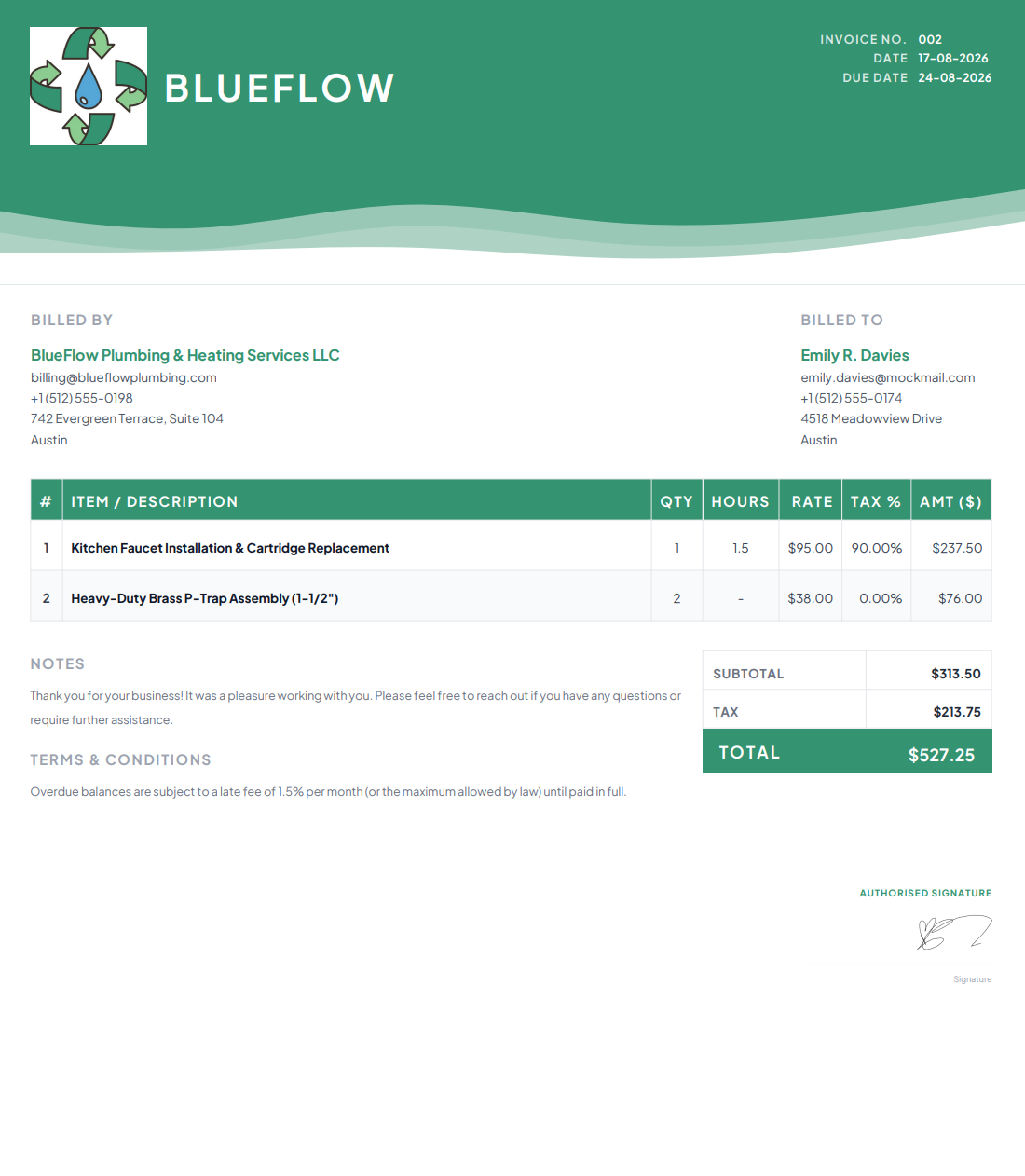
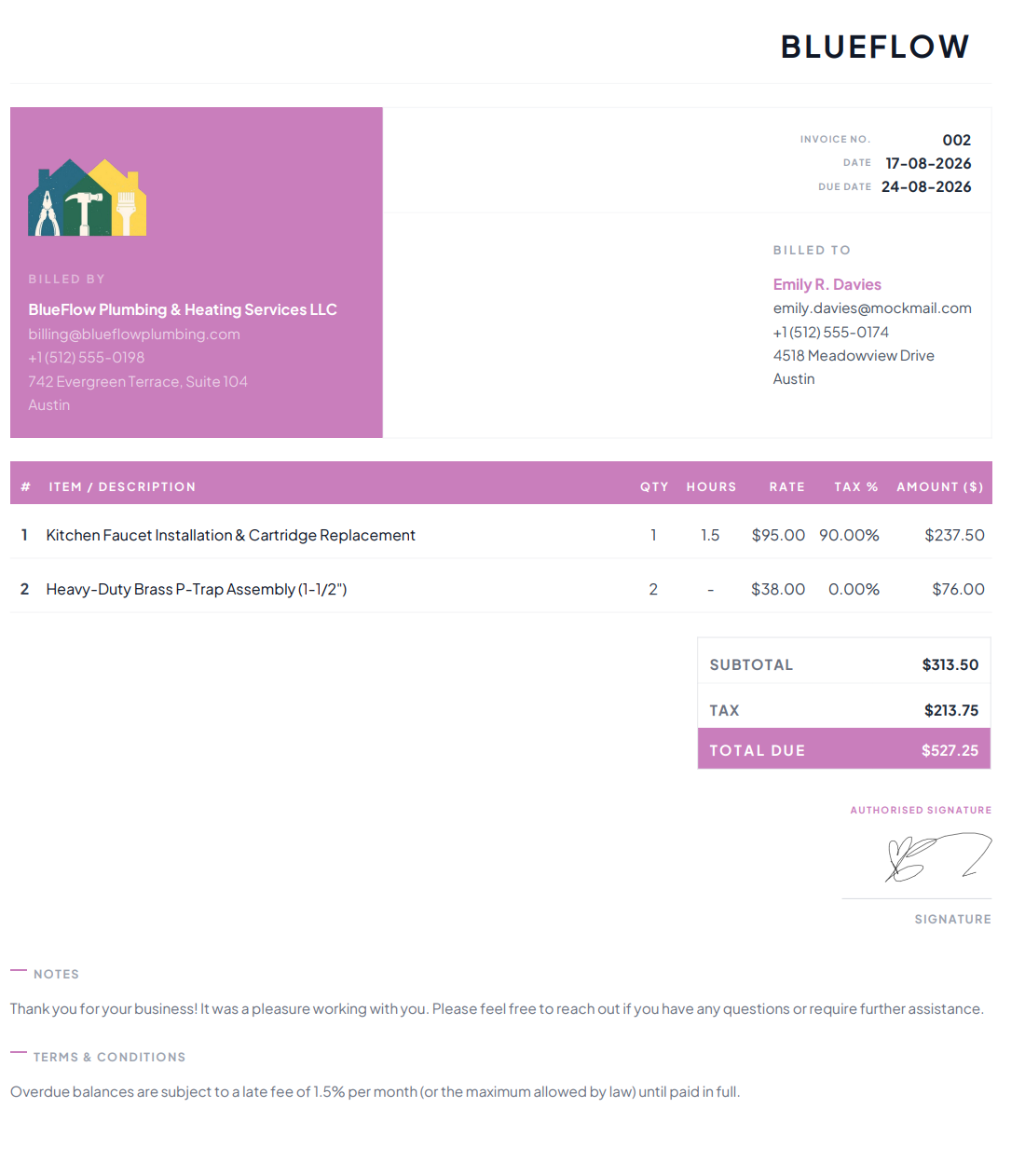
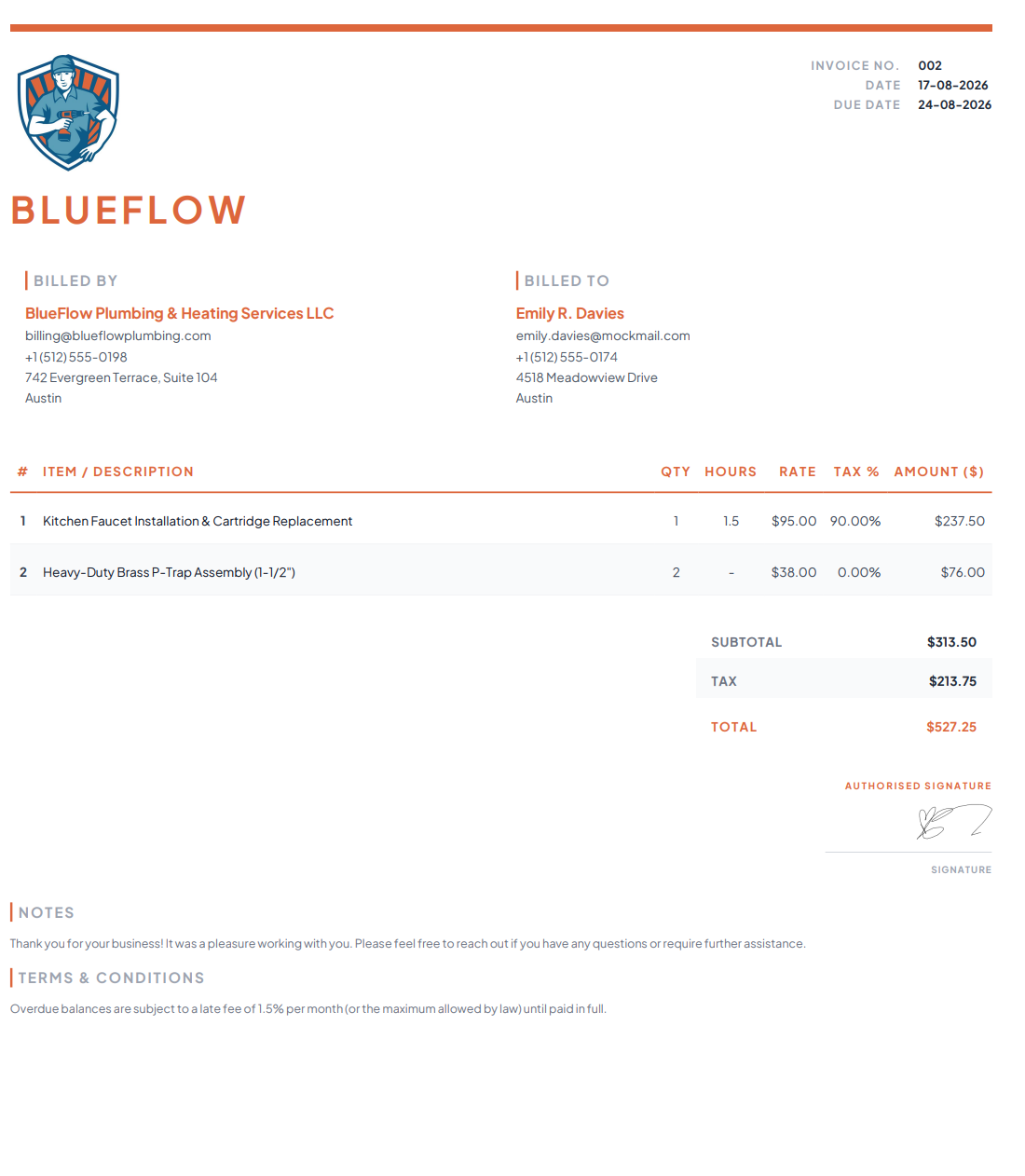
- Add your business details — Include your plumbing company name, logo, phone number, email, and address.
- Enter customer details — Add the customer's name, contact information, and job-site address.
- Add invoice details — Include an invoice number, issue date, and payment due date.
- List plumbing services and materials — Describe the work completed and parts or materials used, keeping labor and materials clearly organized.
- Add prices and charges — Enter quantities, rates, taxes, discounts, and any additional charges.
- Set payment terms — Mention the payment due date and accepted payment methods.
- Review and send — Check the invoice for accuracy, then download, print, or send it to your customer.
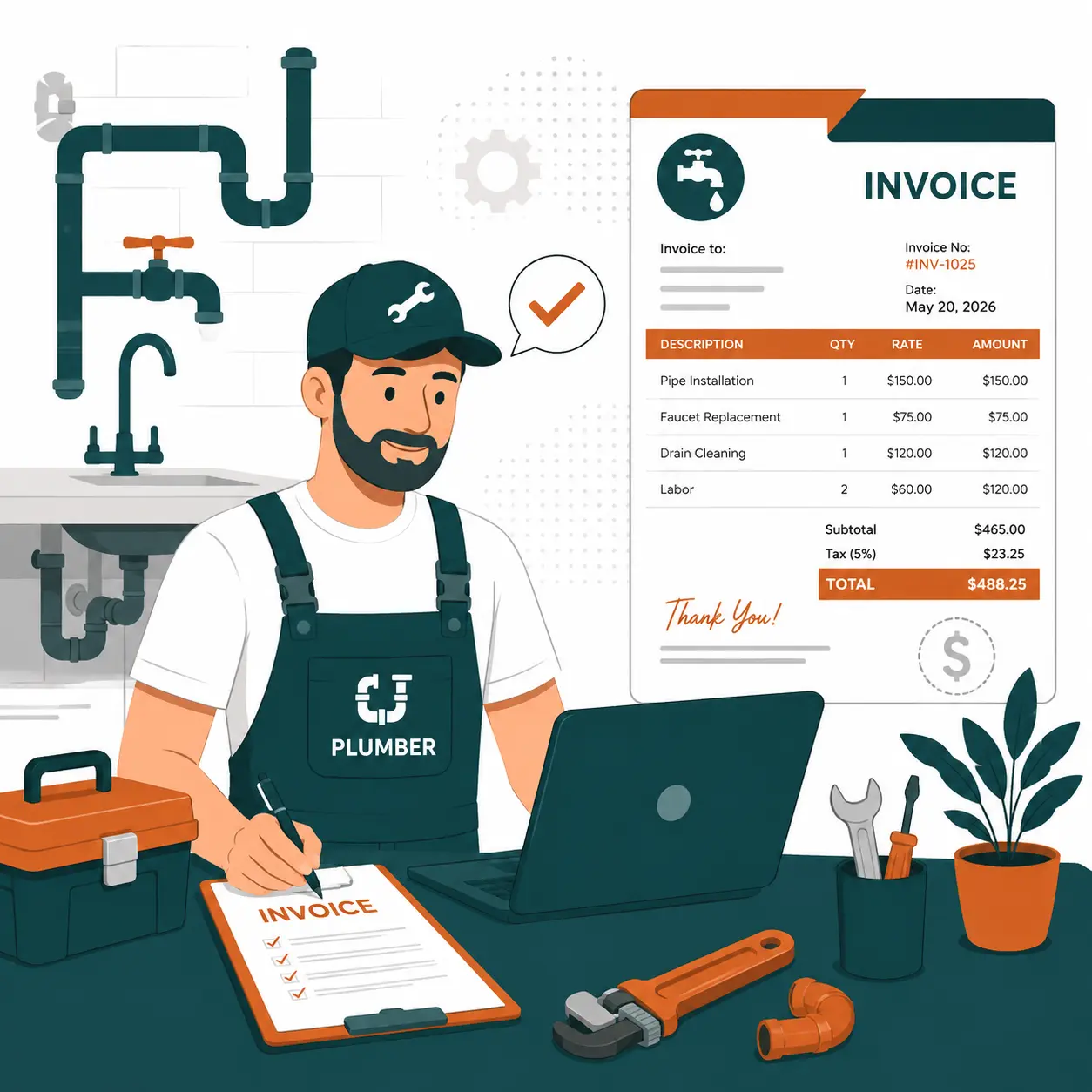
Create a Plumbing Invoice in Minutes
Use the Plumbing Invoice Generator to create a clear, professional invoice for your next plumbing job. Enter your business information, customer details, service description, materials, labor, and other charges to build a complete invoice without starting from a blank document.
Whether you're billing for a plumbing repair, drain cleaning, leak repair, water heater installation, pipe replacement, or emergency service, you can customize the invoice to match the work you completed.
Add Your Business & Customer Information
Start by entering your plumbing business information and the customer's details. Add your company name, contact information, address, invoice number, and date, followed by the customer's name and service address.
Your information can be saved in your browser's local storage to help prevent data loss while creating an invoice.
Add Plumbing Services & Materials
Describe the plumbing work you completed and add the materials used on the job. You can enter services, parts, quantities, unit prices, and other charges so your customer can clearly see what they are being billed for.
Keep labor and materials separate when needed, and add service calls, emergency charges, equipment, discounts, or other applicable costs.
Review Your Invoice Total
Once your items are added, review the invoice summary before sending it to your customer. Check your subtotal, taxes, discounts, deposits, and final balance to make sure everything is correct.
You remain responsible for reviewing all invoice information and calculations before providing the invoice to your customer.
Download, Print, or Send
When your invoice is complete, you can download it as a PDF, print a copy, or send it to your customer. Keep a copy of completed invoices with your business records for future reference.